
Note
This article explains how Making Tax Digital (MTD) for VAT works in practice within CFPWinman.
Making Tax Digital for Landlords isn't yet live and will be introduced from April 2026 onwards.
What are the current Making Tax Digital requirements?
Making Tax Digital is in place for VAT and replaces the manual submission of tax returns through the HMRC portal. From April 2020, most VAT registered businesses with a turnover above £85,000 must:
- Keep their VAT records digitally
- Use Making Tax Digital compatible software to submit their VAT returns to HMRC
The aim of this is to:
- Reduce errors caused by manual processes
- Improve the accuracy of tax submissions
- Create a more efficient and transparent tax system
For more information on the legislation, please refer to the Making Tax Digital for VAT article on the Gov.UK website.
We have an application that will allow you to import your agency fees directly into Quickbooks, Sage or Xero accounting systems. There is no software update required for you to use this function, you just need to install an application. Please see below for instructions on how to do this.
Digital tax export installation instructions
There is no software update required for you to use this function.
- Click on the Install Application link below. This will open Dropbox where you can click Download, followed by Or continue with download only, to save and download it
Install Application - Choose a location on your computer to save the application and click Save
- Click the application from your downloads folder to run and install it
Only the Bookkeeper or Accounts person in your business needs to install and use this application.
Note
If you require this application to be run on the Remote Desktop Server\Terminal Server, your IT company will need to install this for you as the administrator and in ‘Install Mode’
After you have installed the .exe, follow the setup wizard that appears on screen. Each step of the wizard has instructions that should be read before you click on the NEXT button.
If you aren’t already using Microsoft .Net Framework 4.5.2, you will get this message:
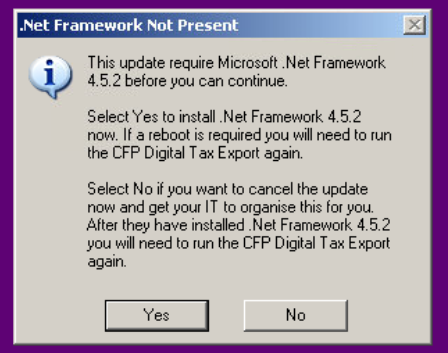
Click on Yes to install the Microsoft .Net Framework 4.5.2.
(Click on No to have this installed by your IT company)
When you click Yes (or if you already have the .Net Framework 4.5.2 loaded) you will be prompted with the rest of the wizard screens:


(Click on the Create Desktop Shortcut option to create a shortcut on your PC as well as installing the application in CFPwinMan):


Click the final Next button and the install will be complete.
Now that you have installed the application, please see below for instructions on how to use it.
Digital Tax Return Export
If you have already followed the instructions above, you’ll see the Digital Tax Export option under the Help/Utilities menu:
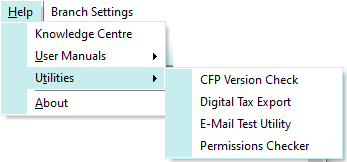
(If the option doesn't appear immediately, close CFPwinMan and reopen it to refresh the screen. Make sure that the application is in the location you selected during the installation or check with your IT company.)
Click on Digital Tax Export and you will be presented with a screen to enter details of your Export:

How to complete the form
Database and Accounting Software Selection

- Select the database for your Export. If you have more than one database, you can run the export more than once. See below*
- Select the accounting product (Sage, Quickbooks or Xero)
(*For each database/accounting product combination, the data entered is retained so when you return it, it is re-presented to you to re-use or amend as required.)
Export Information

Enter the Account Name that is referenced in your Accounting software currently
- To distinguish the invoices related to your lettings business from other invoices, you can enter an invoice prefix
- If the Summary Export option is not selected then the export will contain a line for each transaction
- If you tick the Summary option, the data will be summarised by nominal code. When using a summary you must enter a Summary Invoice number
Your Accountant can give you advice about this section.
Accounting Method

- You can select from either an Accrual or Cash accounting method. For Accrual Accounting, the tax point date is that of each invoice issued.
For Cash Accounting, the tax point date is the drawdown date (i.e. the date the agency pays themselves in CFPwinMan)
Your Accountant can give you advice about this section.
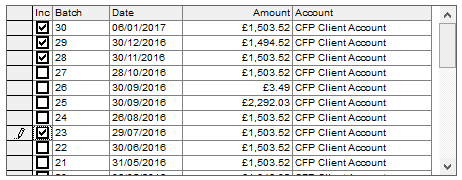
When selecting Cash, you can pick a single Pay Agency Fee batch, or, multiple batches that you want to be included in the export:
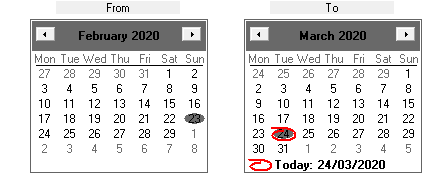
When selecting Accrual, the Batch list is replaced by a date range:
Format Translations
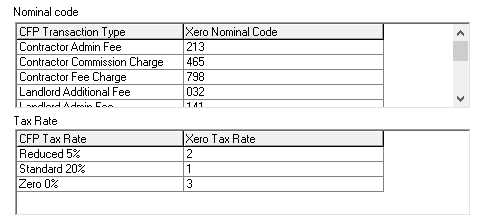
- The CFP Transaction Types and CFP Tax Rates being imported from CFPwinMan will need to be translated into the correct format for the software you use. (Your accountant can assist you with this.)
Nominal codes - there must be an entry for each transaction type if you use Sage and Xero. They can only be left blank if you use Quickbooks
Tax Rates - these fields are mandatory for all Accounting software packages
When the data is imported, these translations will be carried out automatically
Exporting the records

- When you click the Export button, you will be presented with a window to select the location where you wish to store the data being extracted:

- If you wish to change the location for the file, make sure that the alternative location/folder already exists or is created in advance. Once you have selected the output folder, click OK and you will receive a confirmation message:
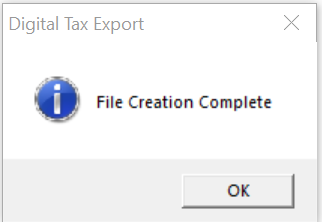
- This might take a while to appear while the file is being created so please allow time for the process to complete
The final step will be to upload the file that has been created into your Accounting software. Please contact your Accounting software provider if you need advice on how to do this.